

Most keycap mistakes do not happen because someone picked a bad design. They happen because the set looked right in photos, but one or two keys did not fit the actual keyboard.
That is the quiet reason compatibility charts matter. A good chart tells you whether a set covers your board size, your ANSI or ISO layout, your bottom row, and the odd keys around the right Shift, spacebar, and arrow cluster. If you only check the main letter keys, you can miss the parts that decide whether the keyboard looks finished.
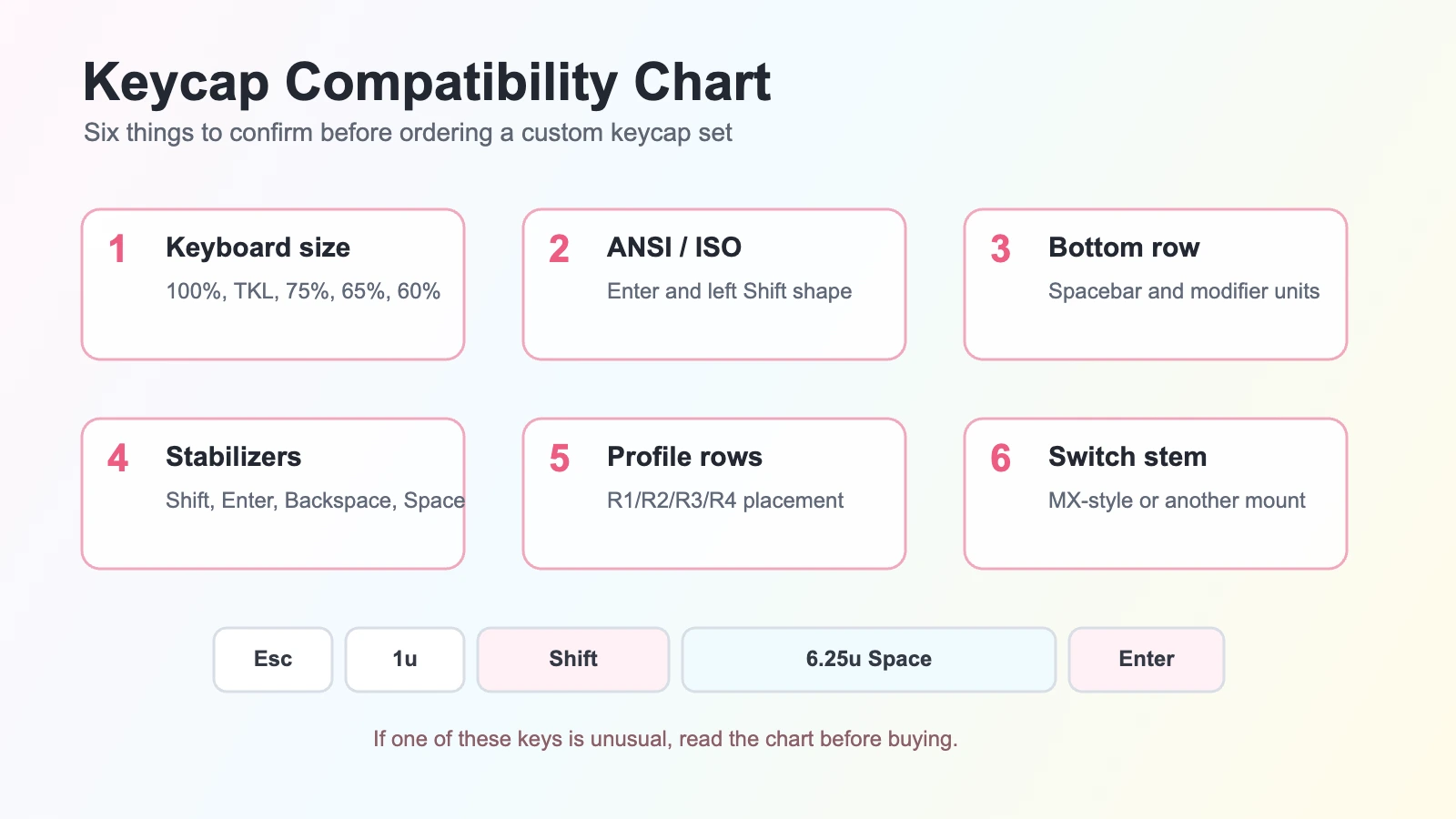
This guide is written for shoppers, not spec-sheet collectors. Before you buy a custom keycap set, use the checks below in order. If a listing does not answer one of them, ask before ordering.
Start With Keyboard Size, But Do Not Stop There
Keyboard size is the first filter because it tells you how many key positions a set may need to cover. A full-size keyboard usually needs the number row, function row, navigation cluster, arrows, and numpad. A TKL board removes the numpad. A 75% board compresses the navigation area. A 65% board usually keeps arrows but drops the function row. A 60% board removes even more dedicated keys.
If you are still comparing sizes, start with our mechanical keyboard sizes guide. Once you know the size, come back to the compatibility chart and check the unusual keys. Those unusual keys are where most fit problems hide.
Check ANSI or ISO Before Looking at the Pretty Keys
ANSI and ISO are not just regional labels. They change the physical shapes around Enter and left Shift. ANSI usually has a wide horizontal Enter key and a longer left Shift. ISO usually has a tall Enter key and a shorter left Shift with an extra key beside it.
If a set only includes ANSI Enter and ANSI left Shift, it will not properly cover an ISO board. If your board has the tall Enter key, look for ISO support in the chart before you worry about colors or legends. We keep a deeper explanation in the ANSI vs ISO keyboard layout guide.
Read the Bottom Row Like a Measuring Tape
The bottom row is the row with Ctrl, Alt, Win or Command, and the spacebar. It is also where two keyboards that look almost identical can need different key sizes.
Keycap charts often use units. A normal letter key is 1u. A 6.25u spacebar is common on many standard ANSI keyboards. Some boards use 7u spacebars, 1.5u modifier keys, split spacebars, or compact bottom rows. If the listing includes a compatibility image, compare the bottom row sizes in the chart with your keyboard’s product page or manual.
Do not guess from photos. A spacebar that is only slightly different on screen can be completely unusable in real life.
Look at Stabilizer Keys Next
Wide keys usually need stabilizers. This includes spacebar, Enter, Shift, Backspace, and sometimes numpad plus. A keycap set may include several Shift keys, but not every Shift is the same size.
The three keys I would check first are:
- Right Shift: compact boards often use shorter right Shift keys.
- Spacebar: check the unit size and whether your board uses a centered or split layout.
- Enter: confirm ANSI or ISO before ordering.
If those fit, the rest of the board is much easier to solve.
Match the Profile and Row Labels
Profile describes the shape and height of the keycaps. Cherry, OEM, MDA, MOA, XDA, SA, and DSA do not feel the same. Some profiles are sculpted, which means each row has a different angle. Others are uniform, which means the same shape can often move between rows more easily.
On a sculpted set, row labels matter. If a compatibility chart says R1, R2, R3, or R4, those labels help you place keys in the intended rows. Moving a sculpted key to the wrong row may technically fit the switch, but it can feel tilted or look uneven. For a deeper overview, see our keycap profile guide.
Make Sure Your Switch Stem Is Supported
Most custom keycap sets are made for MX-style cross stems. That includes many mechanical keyboard switches from Cherry-style ecosystems. If your keyboard uses a laptop scissor mechanism, low-profile switch, Topre-style mount, or another non-MX mount, normal custom keycaps may not fit.
This is separate from layout. A perfect ANSI kit still will not help if the mount is wrong. When a listing says “Cherry MX compatible,” read that as a switch-stem compatibility clue, not a promise that every keyboard layout is covered.
Use the Compatibility Chart as a Shopping Checklist
Before ordering, run through this quick check:
- Your keyboard size is covered: full-size, TKL, 75%, 65%, 60%, or another layout.
- Your physical layout is covered: ANSI or ISO.
- Your bottom row sizes match, especially the spacebar and modifier keys.
- Your stabilizer keys match, especially right Shift, Enter, Backspace, and spacebar.
- The profile and row labels make sense for your keyboard.
- Your switch stem is compatible with the keycap mount.
If you are browsing Kawaii sets, start from the keycaps collection and open the product photos and descriptions carefully. For cleaner non-character setups, sets like Minimalist White Folded Shadow Cherry Keycaps and Black Requiem Keycaps are good examples of where layout and profile details matter as much as color.
What if the Chart Does Not List Your Keyboard?
If the chart does not name your exact keyboard, do not panic. Many keyboards share common key sizes. Compare your board’s layout diagram with the set’s included keys. If your keyboard has unusual keys, a split spacebar, a knob, a compact right Shift, or nonstandard bottom row, ask before buying.
A compatibility chart is not there to make shopping harder. It is there to save you from receiving a beautiful set that leaves one blank spot on the board.
The Simple Rule
Pick the design last.
First check size, ANSI/ISO, bottom row, stabilizers, profile, and switch stem. Once those match, then the fun part starts: color, theme, texture, and the keycap that makes the keyboard feel like yours.